Deploy the threat intelligence dashboard (Fly.io + Neon)
Prerequisites
- Git on your local machine and access to
complete-threat-intel-app(includes.github/workflows/deploy-fly.yml,Dockerfile,fly.toml).
Network topology
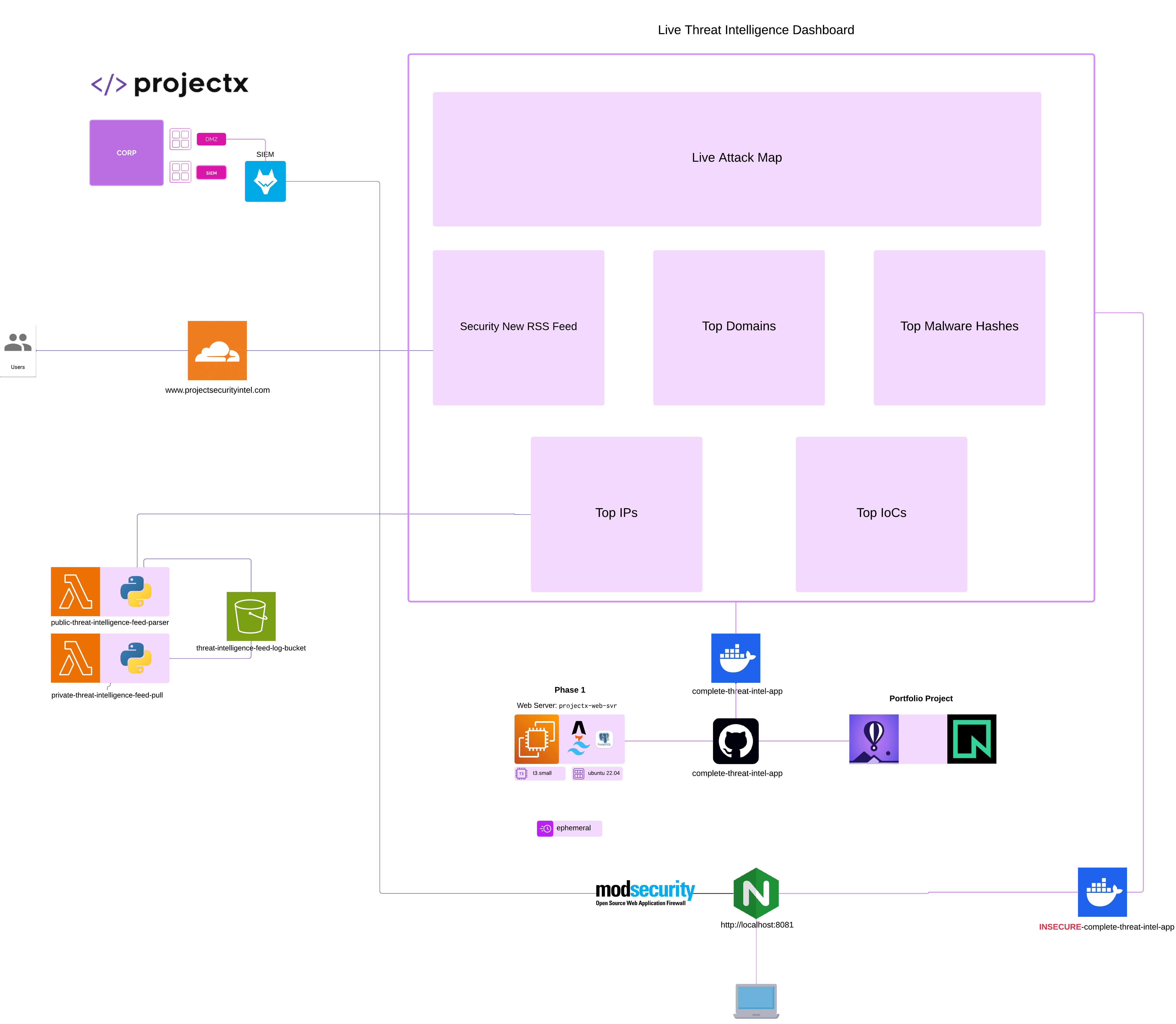
Running the Web Threat Intelligence Dashboard, or really anything on AWS (or Big Cloud), on for 24/7 will result in costs you do not need to be paying for.
This guide replaces the EC2 instance stack layers with:
| Layer | Before | After (budget-friendly) |
|---|---|---|
| App (Astro, Tailwind, Node SSR) | EC2 | Fly.io - Pay for small VMs |
| Database | PostgreSQL on EC2 | Neon - Serverless Postgres with the free tier |
| Feed ingest | Lambda in VPC ➔ EC2 private IP | Lambda without VPC (or with NAT) ➔ Neon over TLS |
You keep the same application code (complete-threat-intel-app), the same dashboard.panel_feed schema, and the same S3 ➔ ingest Lambda pipeline. Only the host and connection targets change.
Order to Complete In
- Neon: Create database and schema.
- Fly.io: Deploy the Astro app.
- Lambdas: Point ingest at Neon.
- GitHub Actions: Automate deploys to Fly.
Prerequisites
complete-threat-intel-appfrom course exercise files (Astro 5,@astrojs/node, Tailwind, React/ECharts).- CA101/WA101 Lambdas:
public-threat-intelligence-feed-parserandprivate-db-threat-intelligence-feed-pullcreated and functional. - A GitHub account (for CI/CD in the next guide).
- Local tools: Node.js 22, Git, and (for Fly) flyctl.
Neon runs the same commands in its SQL editor or psql as we did in the PostgreSQL on EC2.
Network topology (after migration)
Browser
  ➔ Fly.io (HTTPS) ➔ Astro SSR (@astrojs/node)
        ➔ Neon Postgres (TLS, dashboard.panel_feed)

EventBridge ➔ public-threat-intelligence-feed-parser ➔ S3 (.json)
  ➔ private-db-threat-intelligence-feed-pull ➔ Neon (INSERT)
The public parser Lambda is unchanged (still writes S3). Only the ingest Lambda and the dashboard change their database endpoint.
Part 1: Neon (PostgreSQL)
1.1 Create a Neon project
- Sign up at neon.tech.
- New project — pick a region close to you (e.g.
us-east-2/ AWS East). - Note the connection details on the dashboard:
- Host (e.g.
ep-xxxx.us-east-1.aws.neon.tech) - Database (default is often
neondb; you can rename or createneondb) - User / password
- SSL: required (
sslmode=require)
Neon provides a single connection string such as:
Store credentials in a password manager.
1.2 Create schema and users
Open Neon Console ➔ SQL Editor (or connect with psql using the connection string from the console).
Run the same object definitions as the EC2 guide (Create Application Database Objects), adapted for Neon:
-- Connect as the database owner (neondb_owner). It already owns the
-- database and has full privileges, so no extra role or grants are needed.

CREATE SCHEMA IF NOT EXISTS dashboard AUTHORIZATION neondb_owner;

CREATE TABLE IF NOT EXISTS dashboard.panel_feed (
    id bigserial PRIMARY KEY,
    panel_name text NOT NULL,
    source_feed text NOT NULL,
    payload jsonb NOT NULL,
    collected_at timestamptz NOT NULL DEFAULT now()
);

CREATE INDEX IF NOT EXISTS idx_panel_feed_name_collected
    ON dashboard.panel_feed (panel_name, collected_at DESC);
1.3 Seed panel rows
INSERT INTO dashboard.panel_feed (panel_name, source_feed, payload)
VALUES
('security_news_rss', 'placeholder', '{"items": []}'),
('top_100_domains', 'placeholder', '{"items": []}'),
('top_ips', 'placeholder', '{"items": []}'),
('top_10_countries_by_ip', 'placeholder', '{"items": []}'),
('top_malware_hashes', 'placeholder', '{"items": []}'),
('top_iocs', 'placeholder', '{"items": []}');
1.4 Verify from your laptop
Using psql or any SQL client with SSL required:
psql "postgresql://neondb_owner:YOUR_PASSWORD@ep-xxxx.region.aws.neon.tech/neondb?sslmode=require" \
  -c "SELECT COUNT(*) FROM dashboard.panel_feed;"
Expect 6 rows after seeding.
1.5 (Optional) Migrate existing data from EC2
If you already have live rows on EC2 Postgres:
# On a machine that can reach EC2 Postgres (SSH tunnel or temporary SG rule)
pg_dump -h EC2_HOST -U projectx_dbadmin -d neondb \
  --schema=dashboard --no-owner --no-acl -f panel_feed_dump.sql

# Restore into Neon (connection string from console)
psql "postgresql://neondb_owner:PASSWORD@ep-xxxx.neon.tech/neondb?sslmode=require" \
  -f panel_feed_dump.sql
Skip this if you are fine re-seeding and letting Lambdas repopulate panels.
1.6 App environment variables (Fly and local)
The Astro app reads these in src/lib/db.ts (same names as EC2 .env):
| Variable | Example | Notes |
|---|---|---|
DB_HOST |
ep-xxxx.us-east-1.aws.neon.tech |
Neon host only |
DB_PORT |
5432 |
Default |
DB_NAME |
neondb |
|
DB_USER |
neondb_owner |
|
DB_PASSWORD |
(secret) | |
DB_SSLMODE |
require |
Do not use disable for Neon |
Local dev .env:
DB_HOST=ep-xxxx.us-east-2.aws.neon.tech
DB_PORT=5432
DB_NAME=neondb
DB_USER=neondb_owner
DB_PASSWORD=your-neon-password
DB_SSLMODE=require
Part 2: Fly.io (Astro dashboard)
The dashboard is server-rendered (output: 'server', @astrojs/node standalone). Fly runs it as a container built from Dockerfile in the exercise repo.
2.1 Install flyctl
Follow Install flyctl. Sign up / log in:
2.2 Add Fly files to your repo
Copy from exercise-files/web-attacks-101/complete-threat-intel-app into your GitHub repo root:
| File | Purpose |
|---|---|
Dockerfile |
Multi-stage Node 22 image: npm run build in Docker, then node dist/server/entry.mjs on port 8080 |
fly.toml |
App name, region, HTTP service, 512MB VM |
.github/workflows/deploy-fly.yml |
CI deploy (see implement_github_ci_cd.md) |
Edit fly.toml and set a globally unique app name:
2.3 First deploy (manual)
From the repo root (the folder that contains Dockerfile and fly.toml):
The Dockerfile builds the Astro app inside the image (npm run build in a build stage). You do not need a local dist/ folder for deploy.
Optional — build locally first to verify the app before shipping:
On first deploy, Fly builds the Docker image and assigns a URL like:
https://your-unique-threat-intel-dashboard.fly.dev
2.4 Set database secrets on Fly
Do not commit .env. Set secrets on the Fly app (runtime env for the container):
fly secrets set \
  DB_HOST=ep-xxxx.us-east-2.aws.neon.tech \
  DB_PORT=5432 \
  DB_NAME=neondb \
  DB_USER=neondb_owner \
  DB_PASSWORD='your-neon-password' \
  DB_SSLMODE=require \
  -a your-unique-threat-intel-dashboard
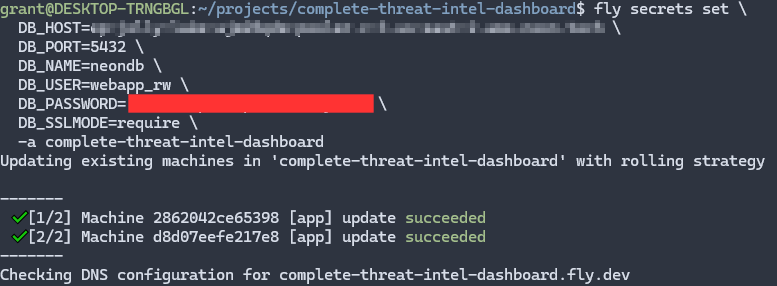
Fly restarts machines when secrets change. Open the app URL; you should see the dashboard (panels may be empty until Lambdas run).
2.5 Cost-oriented Fly settings
fly.toml in the exercise repo uses:
auto_stop_machines = "stop"— machines stop when idle (saves money).min_machines_running = 0— no always-on charge when nobody visits.memory = "512mb"— enough for Node SSR + ECharts.
Cold starts add a few seconds on first request after idle—acceptable for a portfolio dashboard.
2.6 Custom domain (optional)
Fly can issue certificates for your hostname:
Add the CNAME Fly shows in your DNS provider (Cloudflare, etc.). Details: Fly custom domains.
See the Register Domain guide to register your domain name and add the application.
Part 3: Retrofit feed Lambdas for Neon
public-threat-intelligence-feed-parser — no change (still fetches feeds and writes S3).
private-db-threat-intelligence-feed-pull — update to write Neon instead of EC2 Postgres.
3.1 Why networking changes
On EC2, ingest ran in a VPC private subnet to reach Postgres on a private IP. Neon is reachable over the public internet with TLS, so the ingest Lambda can run without a VPC or stay in a VPC only if you have a NAT gateway path to the internet (same as reaching Neon).
Remove the VPC configuration from the ingest function unless you have a specific reason to keep it.
3.2 Update Lambda environment variables
In Lambda ➔ Configuration ➔ Environment variables, remove the old EC2-specific names and set either a single connection string or discrete variables (supported by the updated exercise db.py):
Option A — connection string (recommended)
| Variable | Value |
|---|---|
NEON_DATABASE_URL |
postgresql://neondb_owner:PASSWORD@ep-xxxx.region.aws.neon.tech/neondb?sslmode=require |
Option B — discrete variables
| Variable | Value |
|---|---|
DB_HOST |
Neon host (ep-xxxx...neon.tech) |
DB_NAME |
neondb |
DB_USER |
neondb_owner |
DB_PASSWORD |
Neon password |
DB_PORT |
5432 |
DB_SSLMODE |
require |
Legacy EC2 names (EC2_ENDPOINT, EC2_USERNAME, …) still work for students finishing the original CA101 path; prefer Neon names for new deploys.
3.3 Redeploy ingest code
Use the latest private-db-threat-intelligence-feed-pull from:
exercise-files/web-attacks-101/threat_intelligence_lambda_functions/private-db-threat-intelligence-feed-pull/
Rebuild the zip if you changed db.py locally, upload to Lambda, and confirm handler lambda_function.lambda_handler.
3.4 Security group / VPC cleanup
- Lambda ➔ Configuration ➔ VPC ➔ Edit ➔ Remove VPC.
- Wait for ENI teardown to finish.
- You no longer need Postgres 5432 open from
projectx-lambda-feed-SGto the EC2 web server for ingest (Neon uses TLS on Neon’s endpoint).
3.5 Test ingest
- Run
public-threat-intelligence-feed-parserwithpanel_key: security_news_rss(writes S3). - Confirm S3 trigger fires
private-db-threat-intelligence-feed-pull. - In Neon SQL Editor:
- Refresh the Fly dashboard URL — Security News should show live items.
Troubleshooting
We have left this AI overview summary to check if things are not going right, run through this checklist.
| Symptom | Likely cause |
|---|---|
| Lambda timeout on ingest | VPC still attached without NAT; remove VPC or add NAT |
SSL connection required |
Set DB_SSLMODE=require or use ?sslmode=require in NEON_DATABASE_URL |
password authentication failed |
Wrong user/password; use neondb_owner and Neon’s current password |
| Dashboard empty, DB has rows | Fly secrets missing/wrong DB_*; run fly secrets list |
permission denied for schema dashboard |
Re-run GRANTs from 1.2 |
Docker COPY dist: /dist not found |
Old single-stage Dockerfile expected a pre-built dist/; dist/client and dist/server are gitignored, so Fly's remote builder never receives them. Use the course multi-stage Dockerfile (build runs inside Docker) and redeploy. |
Part 4: End-to-end checklist
- [ ] Neon project created;
dashboard.panel_feedexists with seed rows - [ ]
psql/ SQL editor count returns 6+ after ingest tests - [ ] Fly app deploys;
fly secretsset for allDB_*variables - [ ]
https://YOUR-APP.fly.devloads dashboard - [ ] Ingest Lambda uses
NEON_DATABASE_URLorDB_*; VPC removed - [ ] S3 ➔ ingest ➔ Neon ➔ Fly UI verified for at least
security_news_rss - [ ] GitHub Actions deploys on push to
main(implement_github_ci_cd.md) - [ ] EC2 dashboard stopped when no longer needed
Reference files (course repo)
| Path | Role |
|---|---|
exercise-files/web-attacks-101/complete-threat-intel-app/ |
Astro app, Dockerfile, fly.toml, deploy-fly.yml |
exercise-files/web-attacks-101/complete-threat-intel-app/src/lib/db.ts |
Postgres client (DB_* env) |
exercise-files/web-attacks-101/threat_intelligence_lambda_functions/private-db-threat-intelligence-feed-pull/db.py |
Ingest; Neon + optional EC2 env |
| PostgreSQL on EC2 | Canonical schema reference |
| Private DB threat intelligence feed pull | Lambda console steps (updated for Neon) |
Related guides
- Deploy CI/CD Using Github — GitHub Actions ➔ Fly.io
- Optional navigation menu — header links on the dashboard
- Dashboard panel threat intelligence feeds — all six feed modules
- Register a domain — DNS (use Fly CNAME when on Fly)