Prerequisites
- All steps in "Prepare Lambda Environment".
- All steps in "Public threat intelligence feed parser (Lambda)".
Network topology
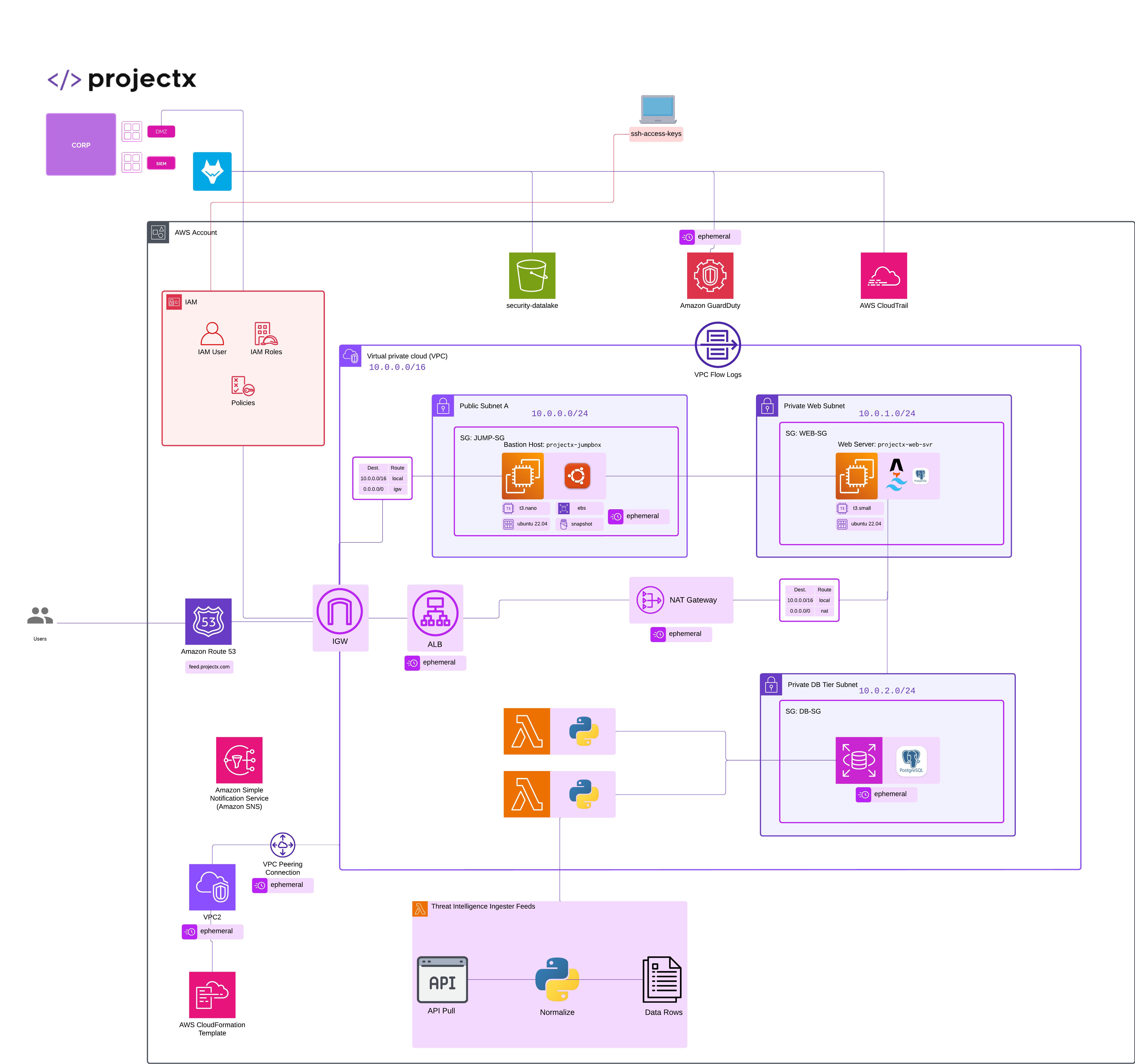
Overview
This guide creates the private-db-threat-intelligence-feed-pull AWS Lambda function:
This Lambda function runs when Amazon S3 creates new .json objects in your feed bucket (the same bucket public-threat-intelligence-feed-parser writes to). For each S3 event record, calls GetObject, parses the JSON document, and inserts a row into dashboard.panel_feed via psycopg2 (db.py).
This function runs inside the VPC on the Private Web Subnet so it can reach PostgreSQL on a private address.
From a subnet without a NAT path to the internet, S3 must be reachable via an S3 gateway VPC endpoint . Without that, GetObject can hang until the Lambda times out even though IAM is correct.
Exercise code
Download the Python sources (and any packaged .zip file there) from the exercise repository:
private-db-threat-intelligence-feed-pull on GitHub
Step 1: Create the Lambda function
- Open the Lambda console ➔ Create function.
- Choose Author from scratch.
- Configure:
- Function name:
private-db-threat-intelligence-feed-pull - Runtime: Python 3.12
- Architecture: x86_64
- Execution role: Use an existing role ➔
projectx-lambda-feed-exec-role - Choose Create function.
Step 2: General configuration
Under Configuration ➔ General configuration ➔ Edit:
- Description (suggested):
S3-triggered ingest of threat intel JSON into dashboard.panel_feed (VPC). - Timeout: 1 minute. (this is good for what we are doing).
- Memory: 256 MB (may need to adjust to higher if you see timeout errors).
Save.
Step 3: Environment variables
Under Configuration ➔ Environment variables ➔ Edit, set at least:
| Variable | Required | Description |
|---|---|---|
EC2_ENDPOINT |
Yes | PostgreSQL host reachable from the private web subnet (typically the private IP of projectx-prod-websvr-public, e.g. 10.0.x.x). |
EC2_DB_NAME |
No | Database name (default in code: projectxdb). |
EC2_USERNAME |
Yes | Database user (e.g. webapp_rw or projectx_dbadmin per your lab). |
EC2_PASSWORD |
Yes | User password (prefer Secrets Manager or Parameter Store in production). |
EC2_PORT |
No | Default 5432. |
EC2_SSLMODE |
No | Default require; use disable only if your lab explicitly uses non-TLS local access. |
Example:
EC2_ENDPOINT=10.0.0.240
EC2_DB_NAME=projectxdb
EC2_USERNAME=webapp_rw
EC2_PASSWORD=your-secret
EC2_PORT=5432
EC2_SSLMODE=require
Save.
WA101 Neon / Fly.io
For the portfolio deploy path (Neon + Fly.io), use the web-attacks-101 copy of this function with NEON_DATABASE_URL — see Deploy the threat intelligence dashboard (Fly.io + Neon).
Step 4: Deployment package (.zip)
-
Download the Python files from private-db-threat-intelligence-feed-pull on GitHub (for example
lambda_function.pyanddb.py). -
The repository may include
private-db-threat-intelligence-feed-pull.zipin the parentthreat_intelligence_lambda_functionsdirectory with those modules at the zip root; you can upload that file directly if present. -
In Lambda Code ➔ Upload from ➔ .zip file, upload the zip.
-
Confirm Runtime settings ➔ Handler is
lambda_function.lambda_handler.
Step 5: Attach the Lambda layer
Under Code ➔ Layers ➔ Add a layer:
- Choose Custom ➔
threat-intel-lambda-layer - Compatible runtime must include Python 3.12.
Step 6: VPC (Private Web Subnet)
Attach this function to the Private Web Subnet so it can reach PostgreSQL on a private IP.
Under Configuration ➔ VPC ➔ Edit:
- VPC:
projectx-prod-vpc - Subnets: Private Web Subnet
- Security groups:
projectx-lambda-feed-SG.
Save and wait for ENI configuration to finish.
Step 7: S3 event notifications
Configure the same bucket public-threat-intelligence-feed-parser uses so that new .json objects invoke private-db-threat-intelligence-feed-pull.
Option A — S3 bucket console
- Open S3 ➔ your feed bucket ➔ Properties ➔ Event notifications ➔ Create event notification.
- Name: e.g.
threat-intel-feed-ingest - Prefix (optional): match Lambda 1’s key prefix if you use one (for example
threat-intel/); leave empty for the whole bucket. - Suffix:
.json - Event types:
s3:ObjectCreated:*(or Put / Post / CompleteMultipartUpload as needed). - Destination: Lambda function ➔
private-db-threat-intelligence-feed-pull - Confirm the prompt so S3 may invoke the function.
Option B — Lambda console
- Open
private-db-threat-intelligence-feed-pull➔ Add trigger ➔ S3. - Select the bucket, object created event type, optional prefix/suffix, enable the trigger, and save.
Do not configure this function to write objects that match the same prefix/suffix pattern.
Step 9: Test event
Under Test ➔ Create new event, name it testpull, use a JSON body shaped like an S3 notification (adjust bucket, key, and Region):
{
  "Records": [
    {
      "eventSource": "aws:s3",
      "awsRegion": "us-east-2",
      "s3": {
        "bucket": { "name": "threat-intelligence-feed-log-bucket" },
        "object": { "key": "2026-03-31/security_news_rss.json" }
      }
    }
  ]
}
👉 The key must match a real object in the bucket (upload one with public-threat-intelligence-feed-parser or manually).
Run a Test. A successful invocation returns HTTP 200 (or 207 if some records in a batch fail) in the function result, dashboard.panel_feed receives a new row, and CloudWatch shows GetObject followed by a successful database connection.
Check CloudWatch Logs for the log group /aws/lambda/private-db-threat-intelligence-feed-pull if anything fails.
Finished!
We are now finished with our entire threat intelligence feed set up, complete with a public and private segmentation, using an S3 bucket as an interface.
In Web & Attacks 101, we will build the feeds out, while learning about relevant security attacks and defenses. You are now ready to move onto the next session.