Set up the local Docker lab container (WA101)
Prerequisites
- Docker Desktop (Windows or macOS) or Docker Engine + Docker Compose v2 (Linux).
- Git clone of the course repository (or access to
exercise-files). - At least 4 GB free RAM for Docker; 8 GB recommended if other containers run.
- Optional: Node.js 22 only if you develop the app outside Docker (
npm run dev).
This lab is local only. Do not expose port 8081 to the public internet.
What the stack provides
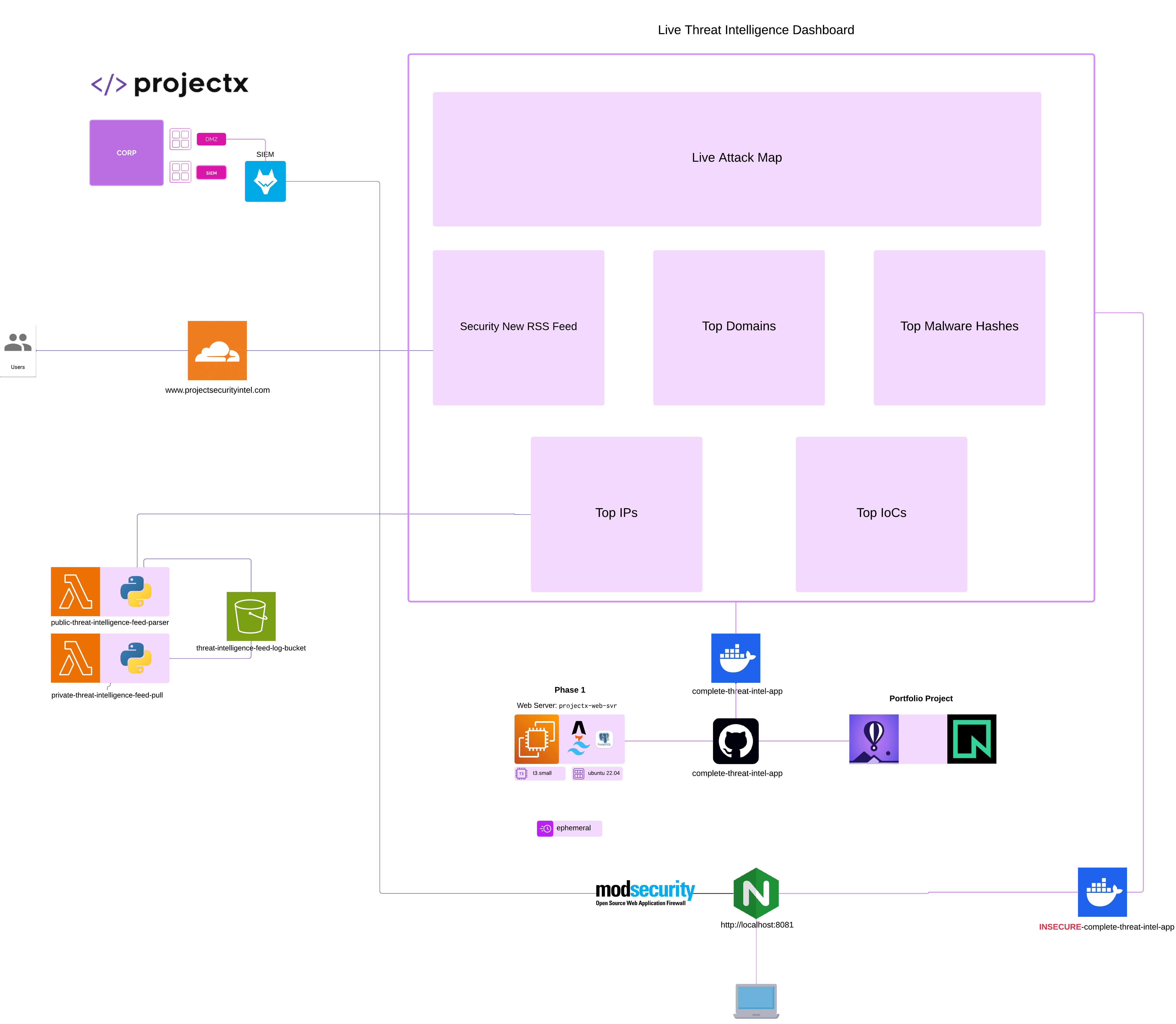
The exercise app INSECURE-threat-intel-app runs three containers:
| Service | Image / build | Port | Role |
|---|---|---|---|
| postgres | postgres:16-alpine |
internal | Database with synthetic dashboard.panel_feed and lab vulnerability tables |
| app | Built from Dockerfile |
internal (4321) | Astro dashboard, login, six feed panels, integrated product features |
| nginx | nginx:1.27-alpine |
8081 → 80 | Reverse proxy in front of the app so you browse without the :4321 port |
Attack methodology guides live in hosted course docs (docs/docs/wa101/attacks/) — not inside the app UI.
Supported assessment scenarios:
| Guide file | Attack |
|---|---|
sql_injection.md |
SQL Injection (SQLi) |
cross_site_scripting.md |
Cross-Site Scripting (XSS) |
idor.md |
Insecure Direct Object Reference |
csrf.md |
Cross-Site Request Forgery (CSRF) |
ssrf.md |
Server-Side Request Forgery (SSRF) |
command_injection.md |
Command Injection |
Network topology (local)
Your browser :8081
       ↓
  [nginx]          reverse proxy (:80)
       ↓
  [app container]  Astro SSR + auth (:4321, internal)
       ↓
  [postgres]       synthetic panel data + lab vulnerability tables
Step 1 — Locate the exercise files
Path in the monorepo:
exercise-files/web-attacks-101/INSECURE-threat-intel-app/
├── docker/
│   ├── docker-compose.yml
│   ├── nginx/         # reverse proxy config (default.conf)
│   └── init/          # schema + synthetic seed SQL
├── Dockerfile
├── src/               # Astro application
└── package.json
Open a terminal in INSECURE-threat-intel-app (not only inside docker/).
Step 2 — Install Docker (if needed)
Windows
- Install Docker Desktop for Windows.
- Enable WSL 2 when prompted (recommended).
- Start Docker Desktop; wait until the engine reports Running.
macOS
Install Docker Desktop for Mac.
Linux / WSL (Ubuntu)
Install Docker Engine and the Compose V2 plugin (recommended — do not rely on old docker-compose 1.29 from apt alone):
Log out and back in (or newgrp docker) so your user can run Docker without sudo.
Verify:
You should see Compose version v2.x. If docker compose is missing:
👉 Avoid using only the legacy docker-compose (hyphen) package at version 1.29.x on Ubuntu — it often fails with:
Not supported URL scheme http+docker
That is a known incompatibility between old Python Compose v1 and newer urllib3/requests in your environment.
Step 3 — Start the lab stack
From INSECURE-threat-intel-app:
Manual start (use hyphenated docker-compose if docker compose fails):
Compose V2 plugin equivalent:
First run will:
- Pull postgres:16-alpine and nginx:1.27-alpine
- Build the app image (
npm ci+npm run buildinside Docker) - Run
docker/init/*.sqlonce (schema, six synthetic panel feeds, and lab vulnerability tables) - Start the app container (no course docs mount required) and the nginx proxy
Wait until logs show the Node server listening on 4321 inside the app container. The nginx proxy then serves it on 8081.
Step 4 — Sign in and verify
- Open http://localhost:8081
- Sign in with default lab credentials:
| Field | Value |
|---|---|
| Username | analyst |
| Password | projectx |
- Dashboard — six feed panels; Tools hosts the artifact integrity check and Shift collaboration; CTI reports hosts the report uploader.
- Explore the app like a real deployment (guides are in hosted docs, not in the UI):
| Attack | Where to look in the app |
|---|---|
| SQL injection | Marketplace — catalog search (q); Sign-in — POST /api/auth/login |
| XSS | Tools — shift collaboration thread (case_ref, body POST) |
| IDOR | Documents — ?id= reference numbers |
| CSRF | Settings — notification email (POST /api/settings/email) |
| SSRF | CTI reports — uploaded SVG cover image (cover_image) whose embedded <image href> is resolved server-side; internal target http://localhost:4321/latest/meta-data/iam/security-credentials/cti-uploader-role |
| Command injection | Tools — ingest artifact integrity check (artifact); payload feed-2026-01-05.json; id |
If you started the stack before the lab tables were added, reset the DB volume and rebuild:
Step 5 — Optional environment overrides
Copy docker/.env.example if you add custom compose env files. Defaults are in docker/docker-compose.yml:
| Variable | Default | Purpose |
|---|---|---|
AUTH_USERNAME |
analyst |
Login name |
AUTH_PASSWORD |
projectx |
Login password |
AUTH_SECRET |
(see compose) | Session cookie signing |
To change the login password for a semester, edit compose environment and run docker-compose ... up --build again.
Step 6 — Stop and reset
Stop containers:
Remove database volume (fresh seed data on next start):
Troubleshooting
| Symptom | Likely cause | Fix |
|---|---|---|
unknown shorthand flag: 'f' in -f |
Compose V2 plugin not installed | sudo apt install -y docker-compose-plugin then use docker compose (space) |
Not supported URL scheme http+docker |
Broken docker-compose 1.29.x (Python) from apt | Install Compose V2: sudo apt install -y docker-compose-plugin — then docker compose version and npm run docker:up |
docker-compose: command not found |
Compose not installed | sudo apt install -y docker-compose-plugin |
permission denied on docker.sock |
User not in docker group |
sudo usermod -aG docker $USER and re-login |
compose.sh: Permission denied / cannot execute |
Shell scripts copied without execute bit (common on Windows/WSL) | chmod +x scripts/*.sh then re-run npm run docker:up, or run docker compose -f docker/docker-compose.yml up --build directly |
port is already allocated |
Another app uses 8081 | Stop the other service or change "8081:80" on the nginx service in compose |
| Empty dashboard panels | DB volume not initialized | docker-compose ... down -v then up --build again |
500 / driver not connecting on docker.sock (WSL) |
apt docker.io daemon conflicts with Docker Desktop — broken socket at /var/run/docker.sock |
Start Docker Desktop → enable WSL integration → sudo systemctl stop docker && sudo systemctl disable docker → restart Docker Desktop → docker version must show Server. Workaround: run docker compose -f docker/docker-compose.yml up --build from PowerShell on Windows |
Cannot connect to Docker |
Docker Desktop not running | Start Docker Desktop / daemon |
Build fails on npm ci |
Network or Node issue | Retry build; ensure Docker has internet for npm |
| Login fails | Wrong credentials | Use analyst / projectx unless you changed env |
Cross-site POST form submissions are forbidden |
Astro origin check on login POST | Rebuild app image after security.checkOrigin: false in astro.config.mjs, or use the same host for browse and POST (stick to localhost, not mixing 127.0.0.1) |
View logs:
docker-compose -f docker/docker-compose.yml logs -f nginx
docker-compose -f docker/docker-compose.yml logs -f app
docker-compose -f docker/docker-compose.yml logs -f postgres
Development without Docker (optional)
cd exercise-files/web-attacks-101/INSECURE-threat-intel-app
npm install
# Point at local Postgres + guides:
# ATTACKS_GUIDES_DIR=../../../docs/docs/wa101/attacks
npm run dev
You must create schema/seed yourself or run only the Postgres service from compose.
Related guides
- Burp Suite basics — proxy setup for testing web attacks
- WAF defense — ModSecurity + OWASP CRS — defend the same app without code changes, then ship alerts to Wazuh
- WA101 attack guides — SQLi, XSS, IDOR, CSRF, SSRF, command injection
- Production dashboard deploy: Deploy the threat intelligence application