Lambda feed schedules (EventBridge)
Prerequisites
public-threat-intelligence-feed-parserdeployed withFEED_OUTPUT_BUCKET(and optionalS3_KEY_PREFIX) set, and eachpanel_keyyou schedule tested manually at least once (see Public threat intelligence feed parser).- IAM on the Lambda execution role already allows S3 PutObject and CloudWatch Logs as in the CA101 lab.
- You can create EventBridge schedules in the AWS account and region where the Lambda lives.
Network topology
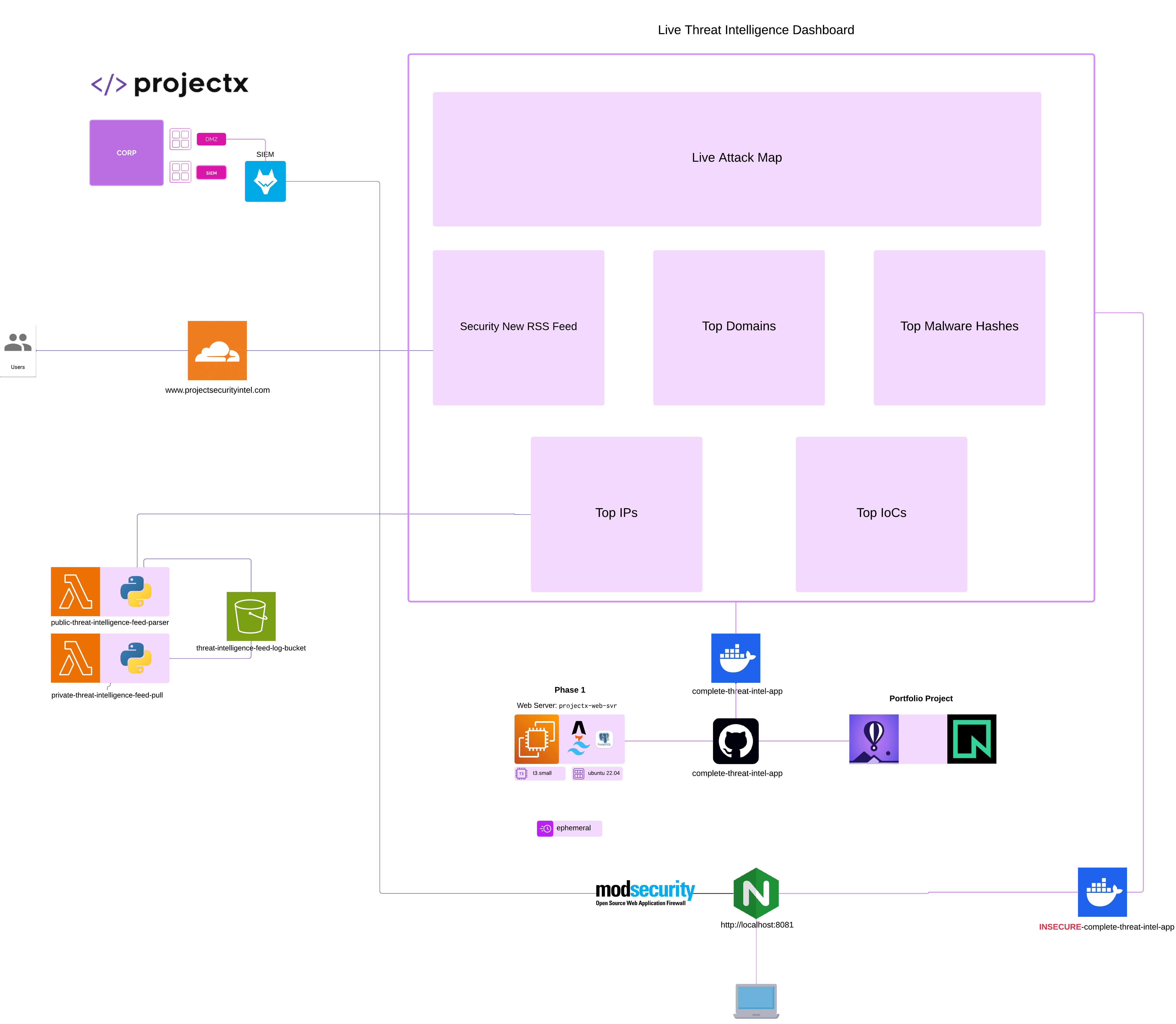
Overview
Amazon EventBridge can invoke your parser Lambda on a cron-like schedule. To run jobs at 2:00 AM in the U.S. Central time zone, use EventBridge Scheduler with timezone America/Chicago. That single zone covers CST and CDT (daylight saving) automatically—avoid hand-converting to UTC twice a year.
You need one schedule per panel_key (or reuse PANEL_KEY in the environment and one schedule—less flexible). This guide uses six schedules, same clock time, different JSON payloads.
Lambda event shape (from the exercise lambda_handler):
panel_key— one of:security_news_rss,top_100_domains,top_ips,top_10_countries_by_ip,top_malware_hashes,top_iocsmax_results— optional integer (defaults to 5 if omitted)
Step 1: Permissions for EventBridge Scheduler → Lambda
EventBridge Scheduler does not use the same pattern as old EventBridge Rules on the default bus. You will not necessarily see events.amazonaws.com on the Lambda’s resource-based policy—that principal is typical of legacy rules, not Scheduler.
Scheduler invokes your function using an execution role (an IAM role you attach to the schedule). That role must allow lambda:InvokeFunction on public-threat-intelligence-feed-parser.
The Lambda resource-based policy (on the function itself) must allow the scheduler.amazonaws.com service to call lambda:InvokeFunction, usually scoped with AWS:SourceArn to your schedule ARN (or a narrow pattern).
Replace placeholders everywhere:
REGION— e.g.us-east-1ACCOUNT_ID— 12-digit AWS account idSCHEDULE_GROUP— oftendefaultSCHEDULE_NAME— the schedule name you chose in Scheduler (one perpanel_keyif you use six schedules)
Schedule ARN format:
arn:aws:scheduler:REGION:ACCOUNT_ID:schedule/SCHEDULE_GROUP/SCHEDULE_NAME
IAM execution role for EventBridge Scheduler (create in IAM)
Create one IAM role and attach it to every schedule that targets this Lambda (all six schedules can share the same role).
Suggested role name: EventBridgeSchedulerInvokePublicThreatIntelFeedParser
1. Trust policy (custom trust entity)
Paste this as the role’s trust policy when you create the role (IAM → Roles → Create role → Custom trust policy):
{
  "Version": "2012-10-17",
  "Statement": [
    {
      "Sid": "TrustEventBridgeScheduler",
      "Effect": "Allow",
      "Principal": {
        "Service": "scheduler.amazonaws.com"
      },
      "Action": "sts:AssumeRole",
      "Condition": {
        "StringEquals": {
          "aws:SourceAccount": "ACCOUNT_ID"
        }
      }
    }
  ]
}
2. Permissions policy (inline or customer-managed)
Attach a policy with only what Scheduler needs to invoke your parser (add other actions only if your org requires it):
{
  "Version": "2012-10-17",
  "Statement": [
    {
      "Sid": "InvokePublicThreatIntelligenceFeedParser",
      "Effect": "Allow",
      "Action": "lambda:InvokeFunction",
      "Resource": "arn:aws:lambda:REGION:ACCOUNT_ID:function:public-threat-intelligence-feed-parser"
    }
  ]
}
Lambda resource-based policy (on the function)
This policy lives on Lambda → public-threat-intelligence-feed-parser → Configuration → Permissions → Resource-based policy statements. It is not created under IAM → Policies; IAM only holds the execution role above.
Logical shape (one Statement per line item; combine into the document Lambda shows in get-policy):
Option A — strict: one statement per schedule (recommended)
Repeat for each SCHEDULE_NAME, changing Sid and AWS:SourceArn:
{
  "Sid": "AllowSchedulerScheduleFeedSecurityNewsRssDaily",
  "Effect": "Allow",
  "Principal": {
    "Service": "scheduler.amazonaws.com"
  },
  "Action": "lambda:InvokeFunction",
  "Resource": "arn:aws:lambda:REGION:ACCOUNT_ID:function:public-threat-intelligence-feed-parser",
  "Condition": {
    "ArnLike": {
      "AWS:SourceArn": "arn:aws:scheduler:REGION:ACCOUNT_ID:schedule/default/feed-security-news-rss-daily"
    }
  }
}
Option B — lab-friendly: one statement for all schedules in group default
Broader: any schedule in default in this account/region could invoke the function. Acceptable for a personal lab; tighten for production.
{
  "Sid": "AllowSchedulerAllSchedulesInDefaultGroup",
  "Effect": "Allow",
  "Principal": {
    "Service": "scheduler.amazonaws.com"
  },
  "Action": "lambda:InvokeFunction",
  "Resource": "arn:aws:lambda:REGION:ACCOUNT_ID:function:public-threat-intelligence-feed-parser",
  "Condition": {
    "ArnLike": {
      "AWS:SourceArn": "arn:aws:scheduler:REGION:ACCOUNT_ID:schedule/default/*"
    }
  }
}
Add the statement in the Lambda console (or CloudShell)
Lambda stores the resource policy on the function. You do not create it under IAM.
- Open AWS Lambda → Functions →
public-threat-intelligence-feed-parser. - Open the Configuration tab → Permissions (left menu).
- Scroll to Resource-based policy statements.
From here you have two practical paths:
A. AWS CloudShell (same as CLI, no local install)
In the console top bar, open CloudShell (terminal icon). Run the aws lambda add-permission commands in the next subsection, substituting your REGION, ACCOUNT_ID, and schedule name. Then refresh the Permissions page; the new statement appears under Resource-based policy statements.
B. Lambda “Add permissions” wizard
Choose Add permissions (wording may be Create or Add permissions depending on console version).
- If the wizard lists EventBridge Scheduler (or lets you pick a schedule and writes the policy for you), use that and save.
- If you only see CloudWatch Events / EventBridge for rules on the default bus, that path adds
events.amazonaws.com— that is for legacy rules, not Scheduler. For Scheduler, use path A or the CLI block below. - If the wizard offers Other AWS service, Custom, or a JSON / Advanced step, you can enter a statement equivalent to Option A or B: Principal = service
scheduler.amazonaws.com, Action =lambda:InvokeFunction, Resource = this function’s ARN, ConditionArnLikeonAWS:SourceArn= your schedule ARN (orschedule/default/*for option B).
There is no separate “create resource policy” screen that stands alone: each add-permission (CLI) or successful wizard save appends one Statement to the policy Lambda shows when you expand Resource-based policy statements or run get-policy.
Apply with AWS CLI (lambda add-permission)
Each CLI call adds one statement. --statement-id must be unique on the function.
Option A (one schedule):
aws lambda add-permission \
  --function-name public-threat-intelligence-feed-parser \
  --statement-id AllowScheduler-feed-security-news-rss-daily \
  --action lambda:InvokeFunction \
  --principal scheduler.amazonaws.com \
  --source-arn "arn:aws:scheduler:REGION:ACCOUNT_ID:schedule/default/feed-security-news-rss-daily" \
  --source-account ACCOUNT_ID
Option B (wildcard group): if the API accepts your ARN pattern:
aws lambda add-permission \
  --function-name public-threat-intelligence-feed-parser \
  --statement-id AllowScheduler-default-group \
  --action lambda:InvokeFunction \
  --principal scheduler.amazonaws.com \
  --source-arn "arn:aws:scheduler:REGION:ACCOUNT_ID:schedule/default/*" \
  --source-account ACCOUNT_ID
If add-permission rejects the wildcard, use Option A six times (unique --statement-id and exact --source-arn each).
Remove a statement: aws lambda remove-permission --function-name public-threat-intelligence-feed-parser --statement-id STATEMENT_ID
Confirm:
aws lambda get-policy --function-name public-threat-intelligence-feed-parser --query Policy --output text
Decode the JSON string to inspect Principal (scheduler.amazonaws.com) and Condition.
What to verify in the console
- IAM → your execution role → Trust relationships match the trust policy above.
- Same role → Permissions include
lambda:InvokeFunctionon the function ARN. - EventBridge → Scheduler → each schedule → Target uses that role.
- Lambda → Configuration → Permissions → Resource-based policy statements match Option A or B.
Legacy EventBridge Rules (default bus) — Lambda resource policy only
If you use a Rule instead of Scheduler, the Lambda statement uses events.amazonaws.com:
{
  "Sid": "AllowEventBridgeRuleInvokeFeedParser",
  "Effect": "Allow",
  "Principal": {
    "Service": "events.amazonaws.com"
  },
  "Action": "lambda:InvokeFunction",
  "Resource": "arn:aws:lambda:REGION:ACCOUNT_ID:function:public-threat-intelligence-feed-parser",
  "Condition": {
    "ArnLike": {
      "AWS:SourceArn": "arn:aws:events:REGION:ACCOUNT_ID:rule/RULE_NAME"
    }
  }
}
aws lambda add-permission \
  --function-name public-threat-intelligence-feed-parser \
  --statement-id AllowEventBridgeInvoke \
  --action lambda:InvokeFunction \
  --principal events.amazonaws.com \
  --source-arn "arn:aws:events:REGION:ACCOUNT_ID:rule/RULE_NAME" \
  --source-account ACCOUNT_ID
Step 2: Create schedules (EventBridge Scheduler) at 2:00 AM America/Chicago
Use EventBridge Scheduler (not the legacy “default event bus only” rule builder) so you can set a timezone.
- Open Amazon EventBridge → Scheduler → Schedules → Create schedule.
- Schedule name: e.g.
feed-security-news-rss-daily(use a distinct name per panel). - Schedule group: keep
defaultunless you use a custom group. - Occurrence: Recurring schedule.
- Schedule type: Cron based schedule.
- Cron expression — run every day at 02:00 in the chosen zone:
Fields are minute hour day-of-month month day-of-week year (AWS cron style; ? in day-of-week when day-of-month is set).
-
Timezone:
America/Chicago(this is what pins “2:00 AM Central” through CST and CDT). -
Flexible time window: leave off for a lab (run at the scheduled instant).
-
Target: AWS Lambda → select
public-threat-intelligence-feed-parser. -
Payload — JSON, constant per schedule, for example:
RSS
Top domains
Top IPs
Top 10 countries
Malware hashes
IOCs
-
Execution role for the schedule: choose the IAM role you created in Step 1 (IAM execution role for EventBridge Scheduler), or use the console Create new role flow and confirm it matches that trust and permissions JSON.
-
Create schedule. Repeat steps 1–12 for each
panel_key, reusing the same cron, timezone, and target function—only the name and JSON payload change.
Step 3: Verify
- Scheduler → open one schedule → Edit and confirm timezone and cron.
- After the first 2:00 AM window, check Lambda → Monitor → Logs for invocations, and S3 for new
YYYY-MM-DD/<panel_key>.jsonobjects. - Optionally use “Send now” / one-off schedule in the console (if available in your region) or Test the Lambda with the same JSON to validate before waiting overnight.
Alternative: classic EventBridge rule (UTC only)
If your lab only allows EventBridge → Rules on the default event bus with no timezone field, express 2:00 AM America/Chicago in UTC and accept that you must adjust the rule when DST starts or ends:
| Local (America/Chicago) | Approximate UTC equivalent |
|---|---|
| 2:00 AM CST (winter) | 08:00 UTC |
| 2:00 AM CDT (summer) | 07:00 UTC |
Cron for 08:00 UTC daily:
Create a rule (not Scheduler), schedule pattern as above, target Lambda, same JSON payloads as in step 2. Use the legacy Lambda resource policy statement in Step 1 (events.amazonaws.com).
Troubleshooting
| Symptom | Check |
|---|---|
| No invocations | Schedule enabled, timezone / cron, schedule in the same region as Lambda. |
| Permission errors in CloudWatch | Execution role allows lambda:InvokeFunction; Lambda resource-based policy allows scheduler.amazonaws.com with a matching AWS:SourceArn. |
| Wrong panel | JSON panel_key spelling matches PANEL_MODULES keys exactly. |
| Empty S3 / errors | Lambda env FEED_OUTPUT_BUCKET, VPC/NAT if applicable, and feed modules deployed (see Dashboard panel threat intelligence feeds). |