Prerequisites
Network Topology
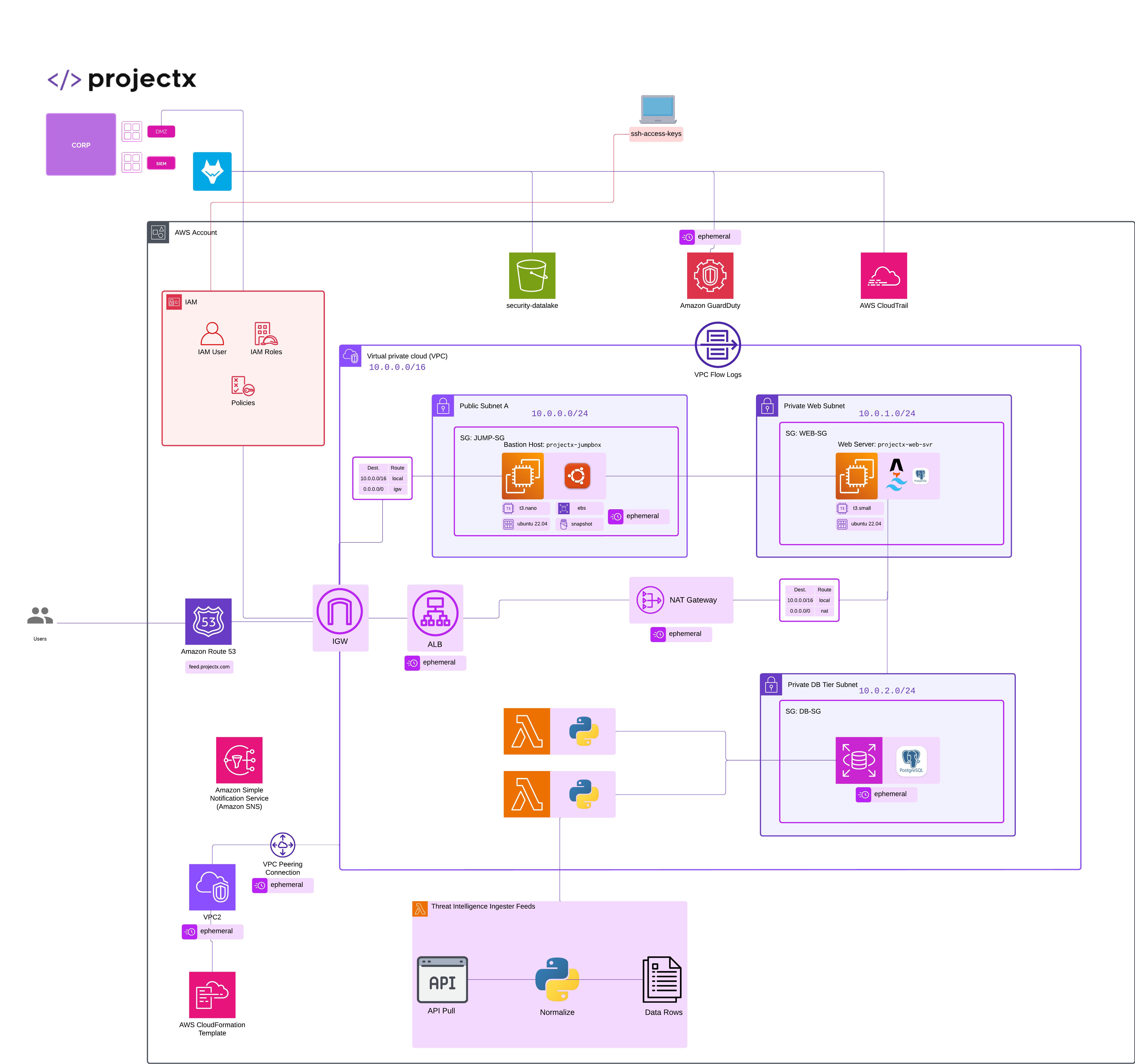
Overview
What is a Public/Private Keypair?
A public/private keypair is a cryptographic authentication mechanism that uses two mathematically related keys:
-
Private Key: A secret key that must be kept secure and never shared. It's used to decrypt data encrypted with the public key and to create digital signatures.
-
Public Key: A key that can be freely shared. It's used to encrypt data that only the private key can decrypt, and to verify signatures created with the private key.
In the context of SSH and AWS EC2:
- The public key is stored on the EC2 instance (in ~/.ssh/authorized_keys)
- The private key remains on your local machine
- When you connect via SSH, your private key proves your identity without transmitting passwords over the network
This provides stronger security than password-based authentication.
Creating a Public/Private Keypair
The most common tool for creating SSH keypairs is ssh-keygen, which is available on Linux, macOS, and Windows (via OpenSSH).
We are going to generate a public / private keypair inside AWS EC2 instead.
This will allow us to automatically load in SSH keypairs whenever we provision new EC2 instances, without having to copy the pubic key everytime.
Generate Desktop Key Pair in EC2
👉 This will be a persistent SSH key we will use throughout CA101.
Navigate to EC2 AWS Service.
Go to "Network & Security" ➔ "Key Pairs".
Select "Create key pair".
Title the Key Pair My-Desktop-Key-Pair.
Leave everything else default.
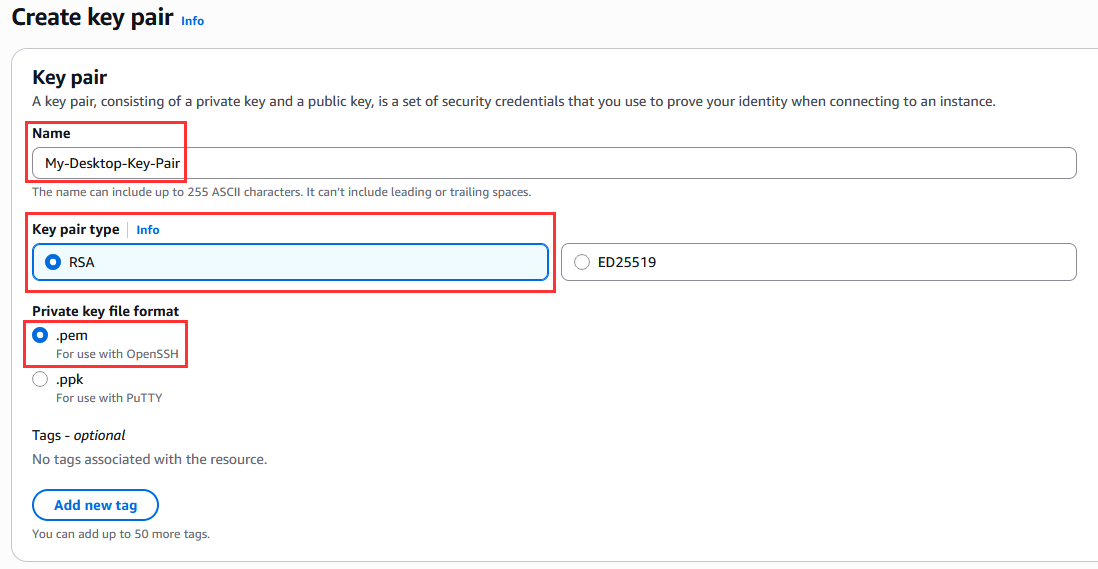
Select "Create key pair".
A new .pem file will automatically be downloaded. This is your private part of the keypair.
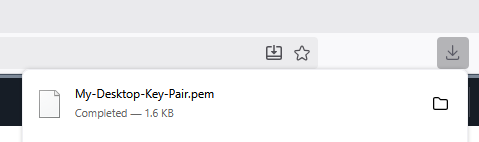
Take note of where this is downloaded, it should be in the \Downloads folder by default.
Storing the Keypair
Now we will move this private key over to the proper .ssh folder. From there, we can just simple ssh into any future EC2 instances with My-Desktop-Key-Pair by supplying ssh -i /path/to/keypair <host>.
Store Private Key on Host
Windows
Default location:
Open PowerShell.
Verify OpenSSH is available
If not installed, install it:Create the .ssh directory (if it doesn't exist):
Move private key to \.ssh folder.
```powershell

mv $env:USERPROFILE\Downloads\My-Desktop-Key-Pair $env:USERPROFILE\.ssh
```
Set proper permissions:
icacls $env:USERPROFILE\.ssh\My-Desktop-Key-Pair /inheritance:r
icacls $env:USERPROFILE\.ssh\My-Desktop-Key-Pair /grant:r "$env:USERNAME:(R)"
macOS
Default location:
Steps:Open Terminal.
Create the .ssh directory (if it doesn't exist):
Move the private key keypair:
Set proper permissions:
Add to SSH agent (macOS automatically loads keys, but you can add manually):
Linux
Create the .ssh directory (if it doesn't exist):
.ssh:
Set proper permissions:
SSH command
Now we can supply the -i command while using the ssh command to automatically log into our EC2 instances.
ssh -i ~/.ssh/My-Desktop-Key-Pair ec2-user@ip-address